Start with a scene description or reference images, then choose the clip length, resolution, and camera setting. Add generated audio when sound is part of the scene, or leave it off for a silent clip.
The final cost is rounded up to whole credits.
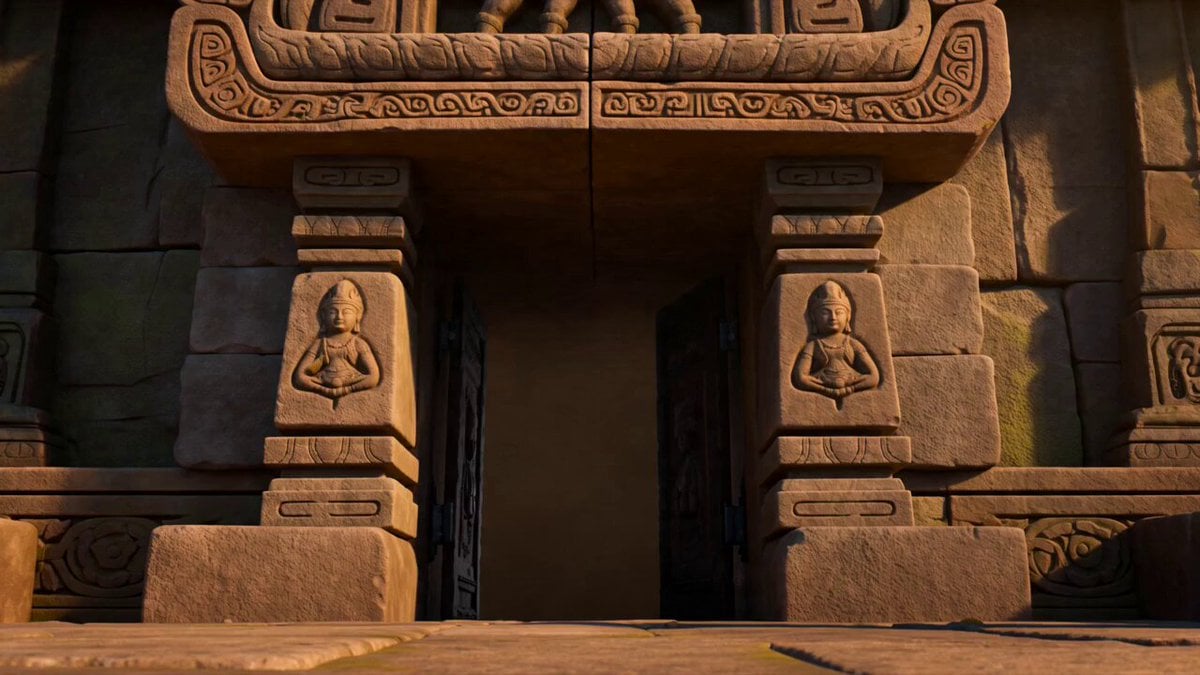
Example output
Seedance 1.5 Pro
Text to Video · Image to Video
Example output
Seedance 1.5 Pro
Best for
Supports
Try this model
No results to display yet.
Model examples
Review examples to help decide whether the model fits your task.
Model strengths
Model strengths
Suggested uses
Tasks to consider
Model details
Provider
ByteDance
Category
Video
Capabilities
Text to Video · Image to Video
Credit charges
Credit rate: 1.75–15 per second of output
Inputs
Prompt + optional images
Prompt requirements
Up to 2,500 characters
Developer access
Seedance 1.5 Pro can be called through Public API v1. Modes that use reference media require uploads through the Files API. Check the model reference for supported inputs.
Seedance 1.5 Pro FAQ
Use it for a short video from a scene description or reference images, with generated audio if the scene needs sound. Describe the action and camera direction, then review the result before using it.
Enter a prompt of up to 2,500 characters. You can also upload up to 2 JPEG, PNG, or WebP reference images, each at most 10 MB. Image-to-video requires the uploaded images; text-to-video starts from the prompt alone.
Choose 480p, 720p, or 1080p and a whole-number duration from 4 to 12 seconds. Generated audio, a fixed camera setting, and the NSFW checker are optional. The 6 aspect-ratio choices apply to text-to-video; that control is hidden when you add reference images.
Without audio, reservation rates are 1.75 credits per second at 480p, 3.5 at 720p, and 7.5 at 1080p. Generated audio doubles the corresponding rate. Rivya multiplies the rate by the requested duration and rounds the reservation up to whole credits. Final charges use reported usage when settlement completes; a completed video can still be awaiting settlement.
This model accepts image references on Rivya. To include sound, enable generated audio and describe it in the prompt. Choose another model if your task needs audio or video uploads, and check that model's input requirements.
Try one scene with a clear action and camera direction. Choose a short duration and decide whether it needs generated audio, then check the resulting motion and sound before making another version.
Upload 1 or 2 JPEG, PNG, or WebP images of at most 10 MB each and add a prompt describing the motion you want. Rivya verifies the original upload's image metadata. If the upload has expired or its verification is missing, upload the image again.
Check the resolution, the whole-second duration from 4 to 12, and whether generated audio is enabled. The defaults are 720p, 8 seconds, audio off, dynamic camera, and NSFW checker off. For text-to-video, the default aspect ratio is 1:1; the ratio control is hidden for image-to-video.
Sign in before generating and make sure you have enough credits for the reservation. Rivya reserves credits before sending the request for generation. The default 8-second, 720p clip without audio reserves 28 credits. The task's reserved and final credit amounts show different stages of settlement.
Use this page to try a scene with Seedance 1.5 Pro. Open Studio when you want the model workspace and generation history for further attempts. Each new generation creates a separate task; checking an existing task's status does not start another generation.
Compare alternatives
Create Seedance 2.5 videos from text, a start frame with an optional end frame, or image, video, and audio references. Choose 480p, 720p, or 1080p, a duration from 4 to 30 seconds or automatic duration, and an MP4 or MOV format request.
Why consider it
Input option: Up to 50 reference files
Generate video from text, a first frame, or media references.
Why consider it
Input option: Prompt, first frame with optional last frame, or image/video/audio references
ByteDance's Seedance 2.0 Fast video model for text prompts, a first frame with an optional last frame, or image, video and audio references. Choose 480p or 720p, set a 4–15-second duration, and request audio or a returned last frame.
Why consider it
Input option: Prompt, first frame with optional last frame, or image/video/audio references