Use HappyHorse 1.1 when the same video idea needs to move between text, a first-frame image, and a set of visual references without leaving one focused workflow.
The final cost is rounded up to whole credits.
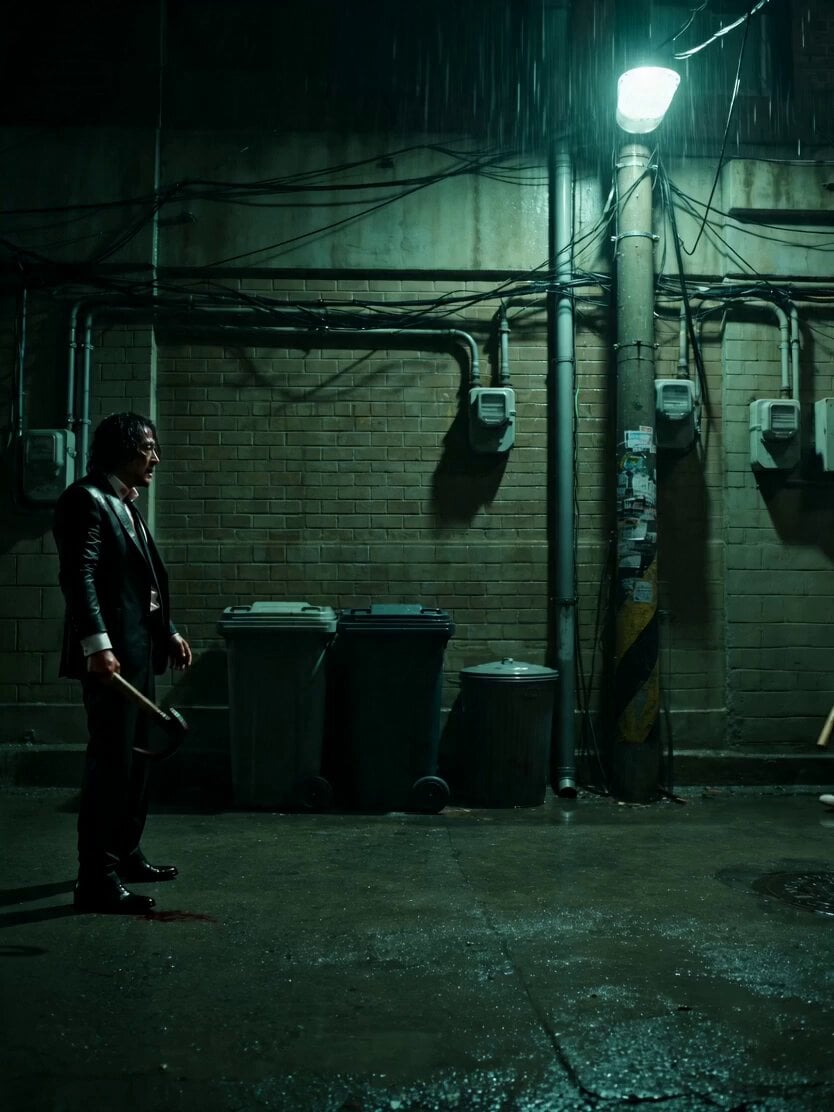
Example output
HappyHorse 1.1
Text to Video · Image to Video
Example output
HappyHorse 1.1
Best for
Supports
Try this model
No results to display yet.
Model examples
Review examples to help decide whether the model fits your task.
Model strengths
Model strengths
Suggested uses
Tasks to consider
Model details
Provider
HappyHorse
Category
Video
Capabilities
Text to Video · Image to Video · Reference to Video
Credit charges
Credit rate: 22.5–29 per second of output
Inputs
Prompt + optional images
Prompt requirements
Optional prompt
HappyHorse 1.1 FAQ
HappyHorse 1.1 is useful when a short video concept may begin as text, one first-frame image, or a collection of reference images. It keeps those three workflows on one model page while preserving separate input rules for each mode.
Leave the reference area empty for text-to-video, upload exactly one image for first-frame image-to-video, or upload 2 to 9 images for reference-to-video. Video and audio inputs are not accepted on this page.
Use JPEG, PNG, or WebP images no larger than 20 MB each. A single first-frame image must have both sides at least 300 pixels and an aspect ratio between 1:2.5 and 2.5:1. Multi-image references must have a shortest side of at least 400 pixels. Prompts allow up to 2,500 characters when they contain Chinese and up to 4,999 otherwise.
The rate is 22.5 credits per requested output second at 720p and 29 credits per requested output second at 1080p. Rivya keeps the decimal rate through the full duration calculation and rounds only the reservation total up to a whole credit. When valid actual usage no higher than the reservation is reported, Rivya settles to it; missing, invalid, or higher-than-reserved usage remains in reconciliation instead of triggering a hidden extra charge.
Choose an aspect ratio for prompt-only and multi-image reference runs. A single-image run follows the first frame instead, so the separate aspect-ratio control is not used in that mode.
Create a short video from a prompt, animate one first-frame image, or guide a new clip with 2 to 9 reference images. All three paths support 720p or 1080p output and a 3 to 15 second duration.
Upload no images for text-to-video, exactly one image for first-frame animation, or 2 to 9 images for multi-reference generation. The number of images determines which workflow is used.
Start with the input mode, then choose resolution and duration. For prompt-only or multi-reference work, also select the frame shape that matches the intended placement. Prompts allow up to 2,500 characters when they contain Chinese and up to 4,999 otherwise.
The details are public, but uploading media and generating require sign-in. Pricing is 22.5 credits per output second at 720p or 29 at 1080p, with only the final total rounded up.
Stay here for a focused first clip. Open Studio when you need saved versions, repeated reference combinations, or a longer production thread around the same video idea.
Compare alternatives
Create Seedance 2.5 videos from text, a start frame with an optional end frame, or image, video, and audio references. Choose 480p, 720p, or 1080p, a duration from 4 to 30 seconds or automatic duration, and an MP4 or MOV format request.
Why consider it
Input option: Up to 50 reference files
Generate video from text, a first frame, or media references.
Why consider it
Input option: Prompt, first frame with optional last frame, or image/video/audio references
ByteDance's Seedance 2.0 Fast video model for text prompts, a first frame with an optional last frame, or image, video and audio references. Choose 480p or 720p, set a 4–15-second duration, and request audio or a returned last frame.
Why consider it
Input option: Prompt, first frame with optional last frame, or image/video/audio references
Developer access
HappyHorse 1.1 can be called through Public API v1. Modes that use reference media require uploads through the Files API. Check the model reference for supported inputs.