
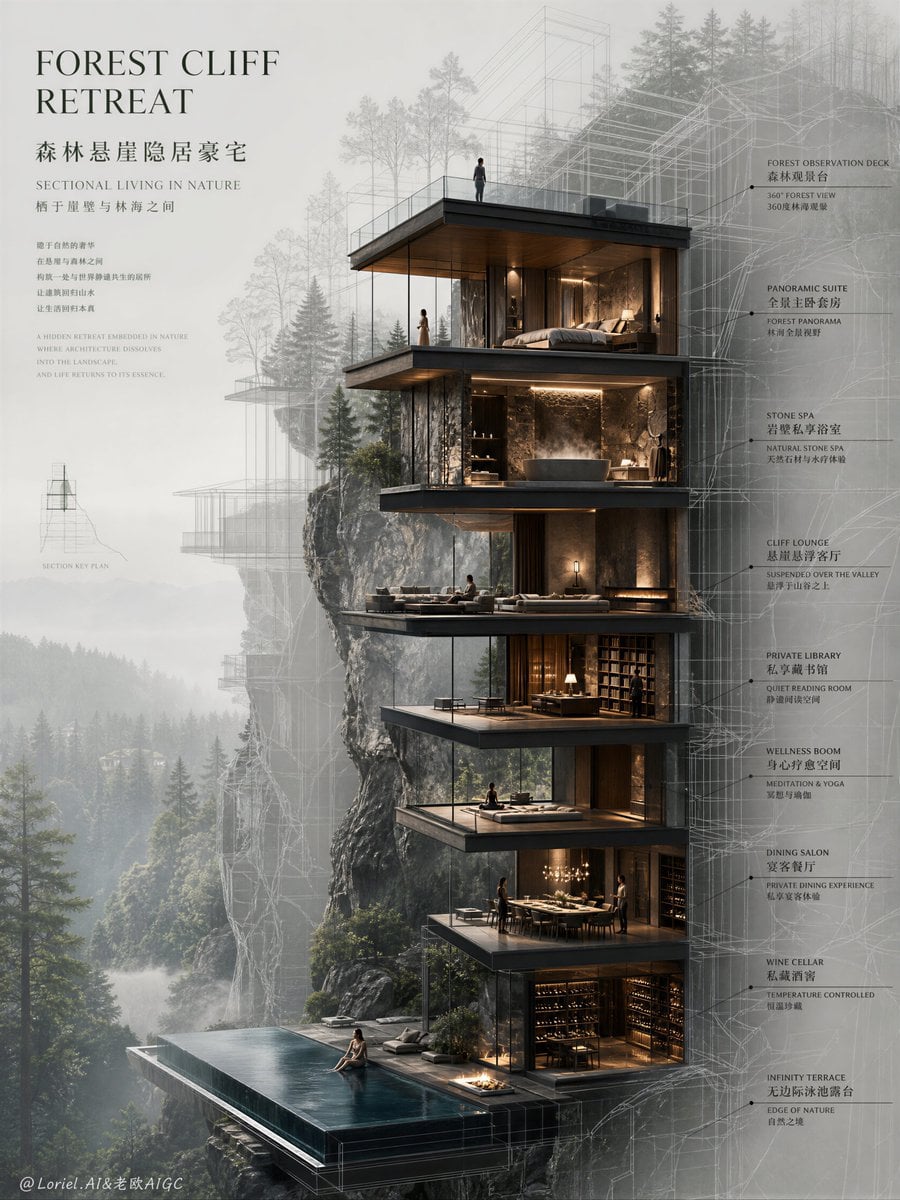
Create drafts for hero graphics, editorial illustrations, and campaign stills from a written brief. Review each result for the subject, layout, and details you need to keep.
The final cost is rounded up to whole credits.
Example output
Google Imagen4
Text to Image
Example output
Google Imagen4
Best for
Supports
Try this model
No results to display yet.
Model examples
Review examples to help decide whether the model fits your task.
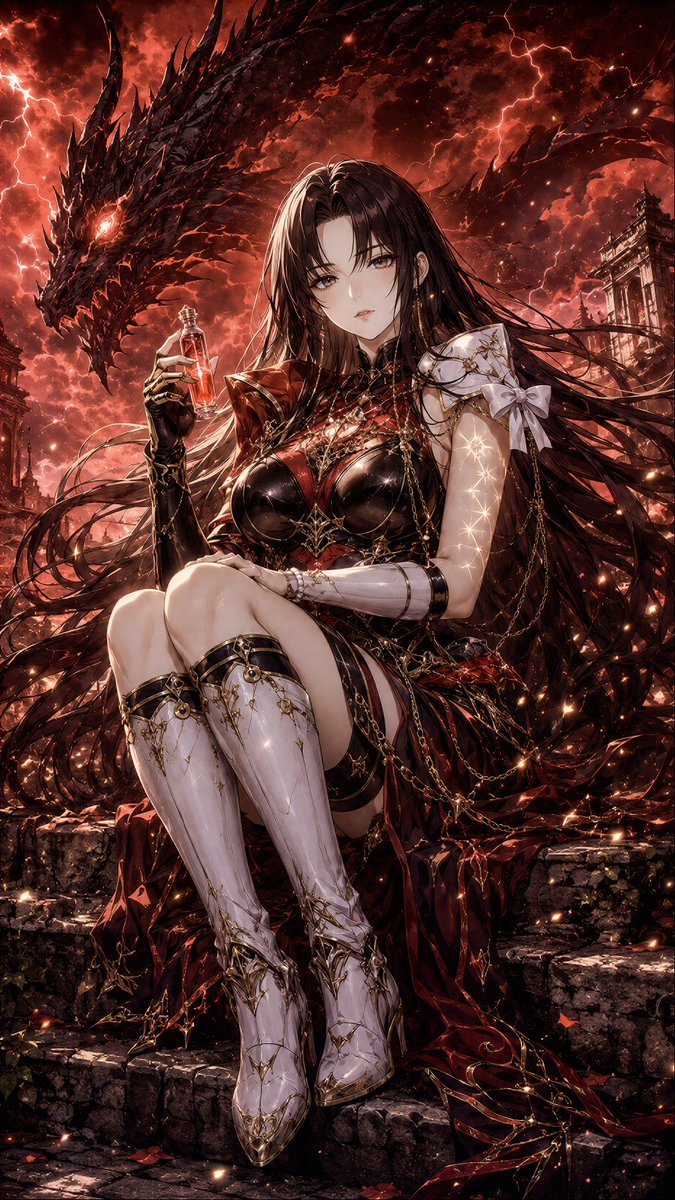
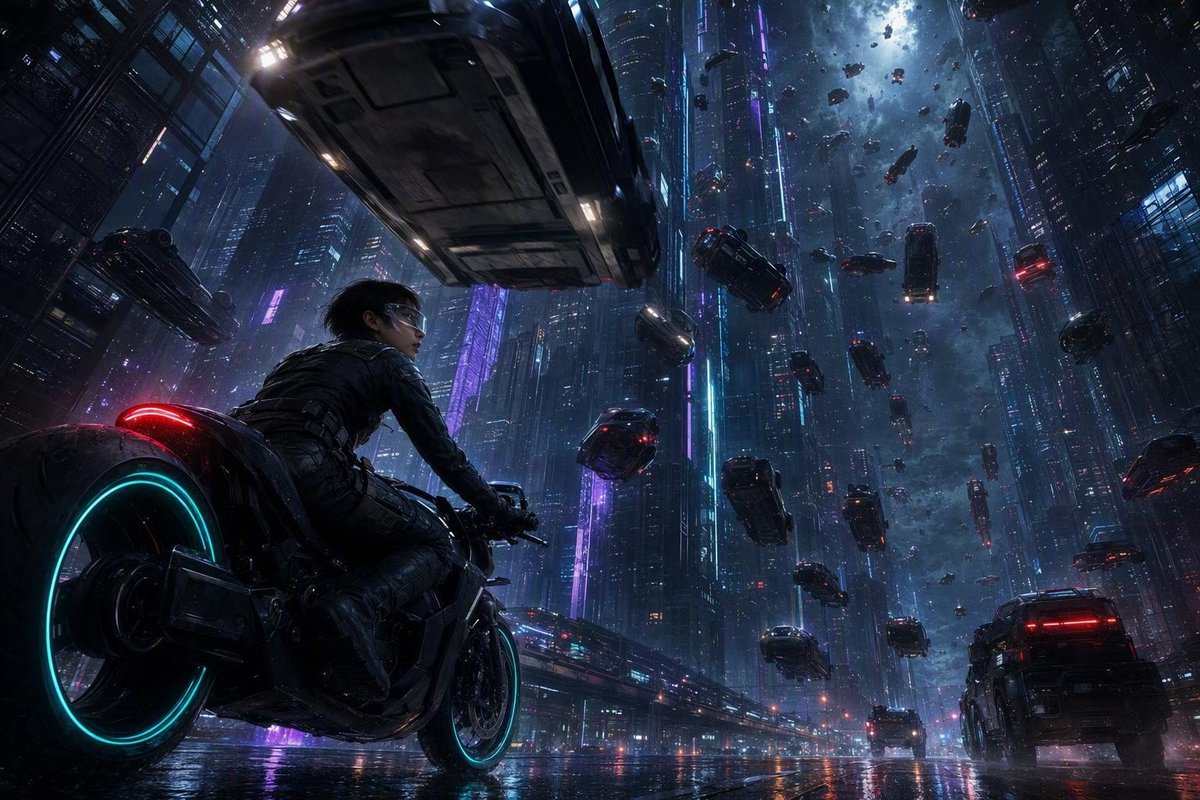
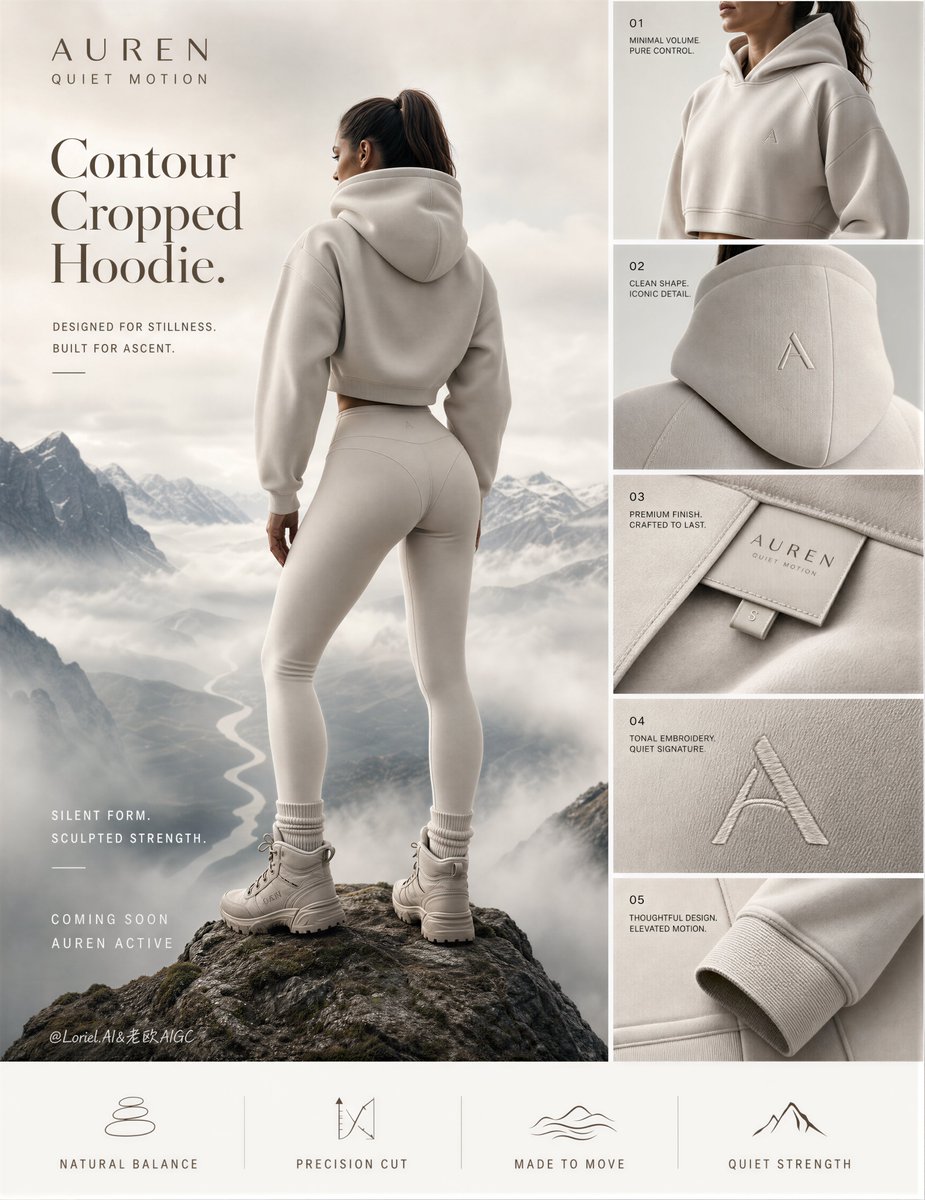
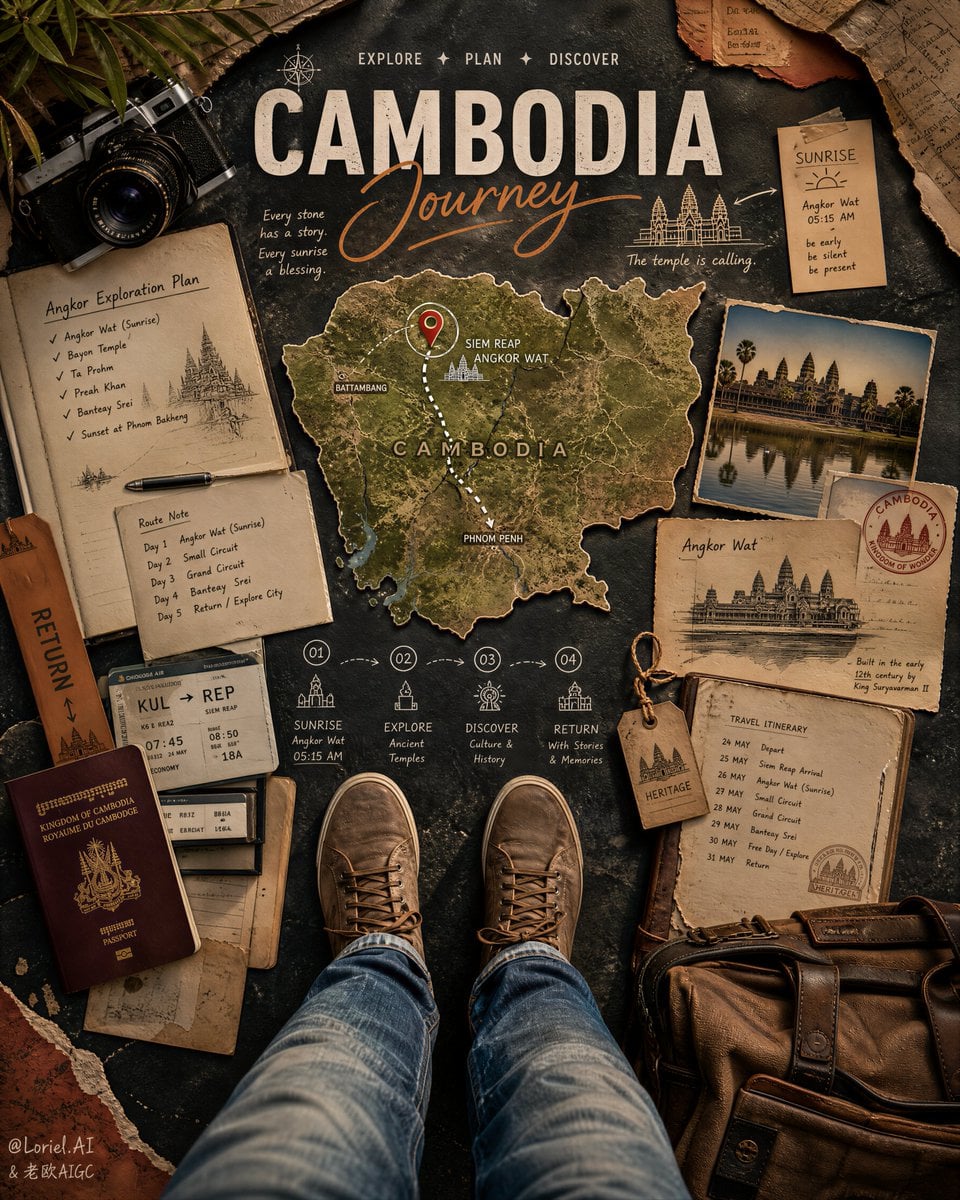
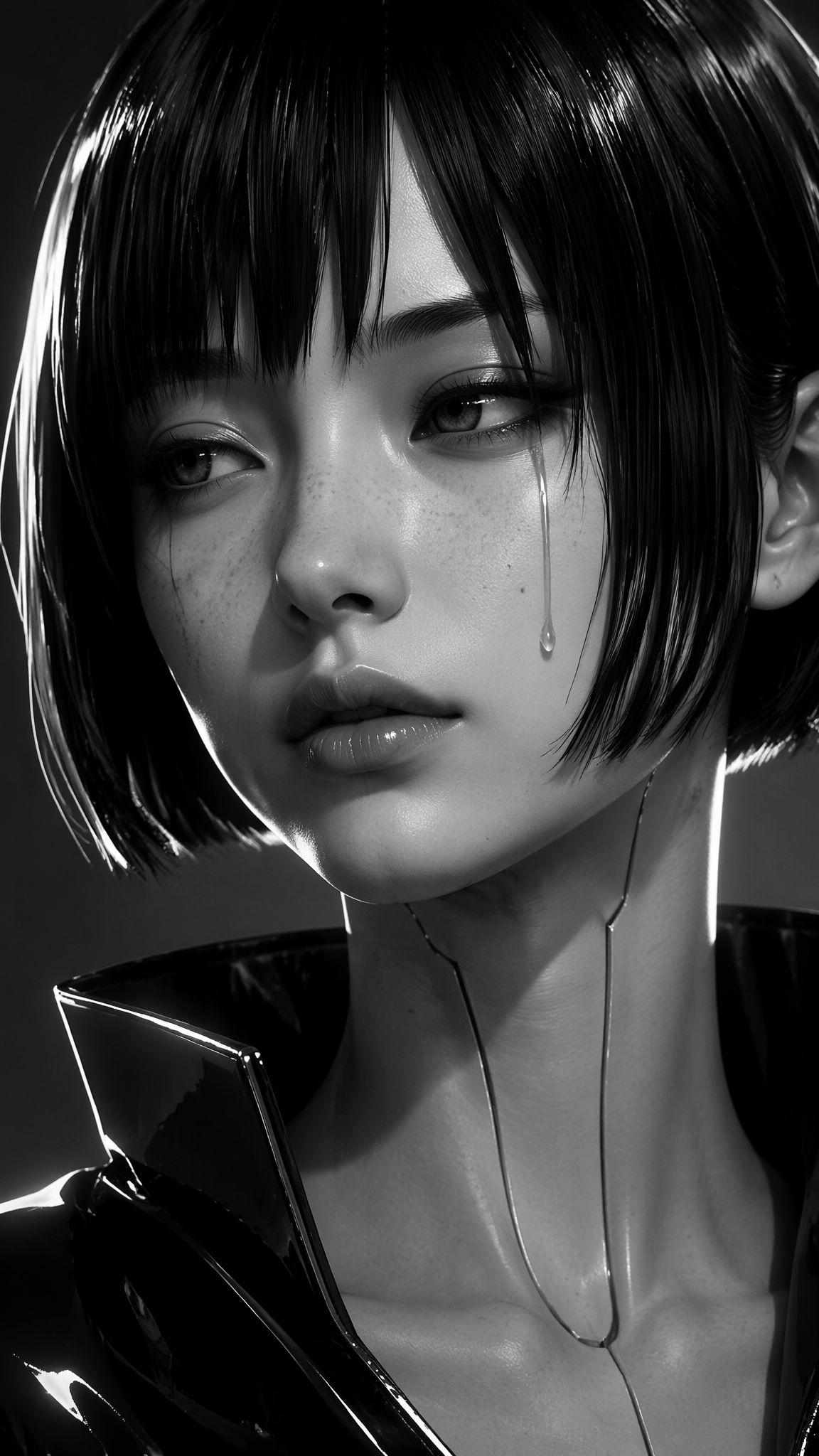
Model strengths
Model strengths
Suggested uses
Tasks to consider
Model details
Provider
Category
Image
Capabilities
Text to Image
Credit charges
Estimated generation: 8 credits per request
Inputs
Prompt only
Prompt requirements
Up to 5,000 characters
Developer access
Use Google Imagen4 through Public API v1. Check the model reference for supported inputs, parameters, and credit charges before sending a request.
Google Imagen4 FAQ
Use Google Imagen4 when you have a written brief for a website hero image, editorial illustration, lifestyle scene, or campaign concept. Describe the subject, composition, style, and lighting, then compare the finished image with that brief. Review visible text, product details, and other claims before using the result.
Google Imagen4 accepts a text prompt, with optional negative prompt, aspect ratio, and seed. This Rivya entry has no reference-image upload or editing mode. Keep the main prompt within 5,000 characters and the negative prompt within 5,000 characters; leave the negative prompt blank when you do not need it.
Choose the listed aspect ratio that suits the layout, and use the negative prompt to describe details to exclude. Seed is an optional text field on this Rivya entry, limited to 500 characters. When comparing attempts, keep the prompt and settings unchanged; reusing a seed does not guarantee the same image.
Rivya estimates 8 credits for each Google Imagen4 generation request across the listed aspect ratios and reserves that amount for the task. Valid recorded task usage is rounded up to whole credits. If the rounded amount is within the reserve, it determines the final cost; otherwise the reserved amount stays recorded while settlement is checked. Each new request has its own cost, so review the prompt and estimate before submitting.
Compare available models using the same brief and the controls each model accepts. Check the resulting composition, visible details, and request estimate before choosing another attempt. Choose a result that fits the intended layout, then review its details before reuse.
Start with a concrete scene for a hero graphic, editorial image, or campaign still. Check whether the result follows the subject and framing you described, and note what needs revision. A public page lets you inspect the model and prepare a request; generation requires your account.
You can prepare a text prompt, choose an aspect ratio, and add an optional negative prompt or seed. This entry does not accept reference-image uploads. Review the form and estimate before signing in to submit, and keep a local copy of your prompt if a page change is needed.
Review whether the prompt describes the subject and framing you want, and whether the negative prompt names details to leave out. Keep both within their displayed limits. A seed is optional text; using the same value may still produce a different image.
You can browse the page and prepare a prompt and settings before signing in. Generation requires your account. Rivya estimates 8 credits per request and reserves that estimate for the task; the final recorded cost depends on settlement. Review the estimate before submitting and save your prompt locally if sign-in or navigation is needed.
Use this page to prepare and submit an individual text-to-image task. Use Studio when it is easier to manage further requests and reopen task history. Keep your approved prompts and downloaded files in your own notes and folders; a saved task is not a complete asset project.
Compare alternatives
GPT Image 2.5 Flare supports image creation from a prompt and edits with image references, plus aspect ratio, resolution, and background settings.
Why consider it
Input option: Prompt + optional images
GPT Image 2.5 Sunburst generates images from a prompt, with optional reference images and separate aspect ratio, resolution, and background settings.
Why consider it
Input option: Prompt + optional images
GPT Image 2 on Rivya supports text-to-image generation and reference-image edits, with aspect ratio and resolution controls.
Why consider it
Input option: Prompt + optional images