
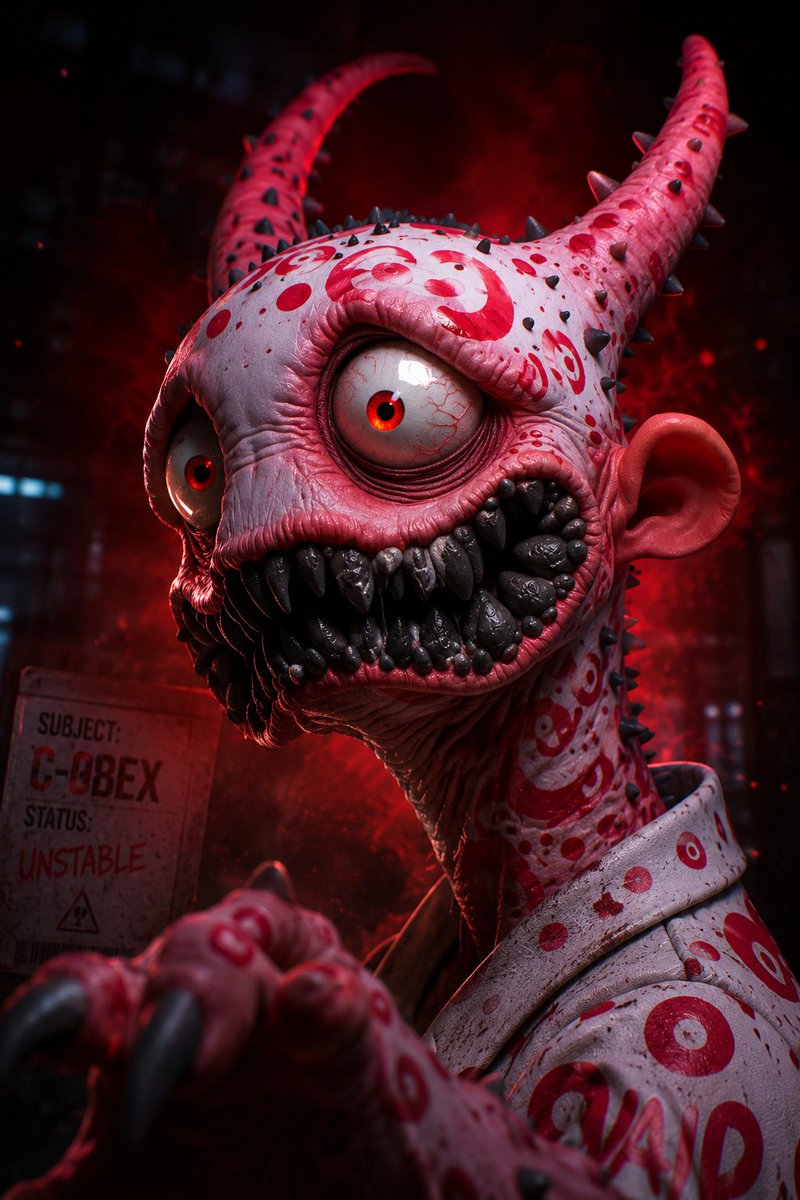
Use Google Imagen 4 Ultra to develop a settled brief into a homepage hero, launch still or campaign image. Describe the subject, composition, lighting and details that matter for the placement, then review the result before approving it. Plan each additional request within your credit budget.
The final cost is rounded up to whole credits.
Example output
Google Imagen4 Ultra
Text to Image
Example output
Google Imagen4 Ultra
Best for
Supports
Try this model
No results to display yet.
Model examples
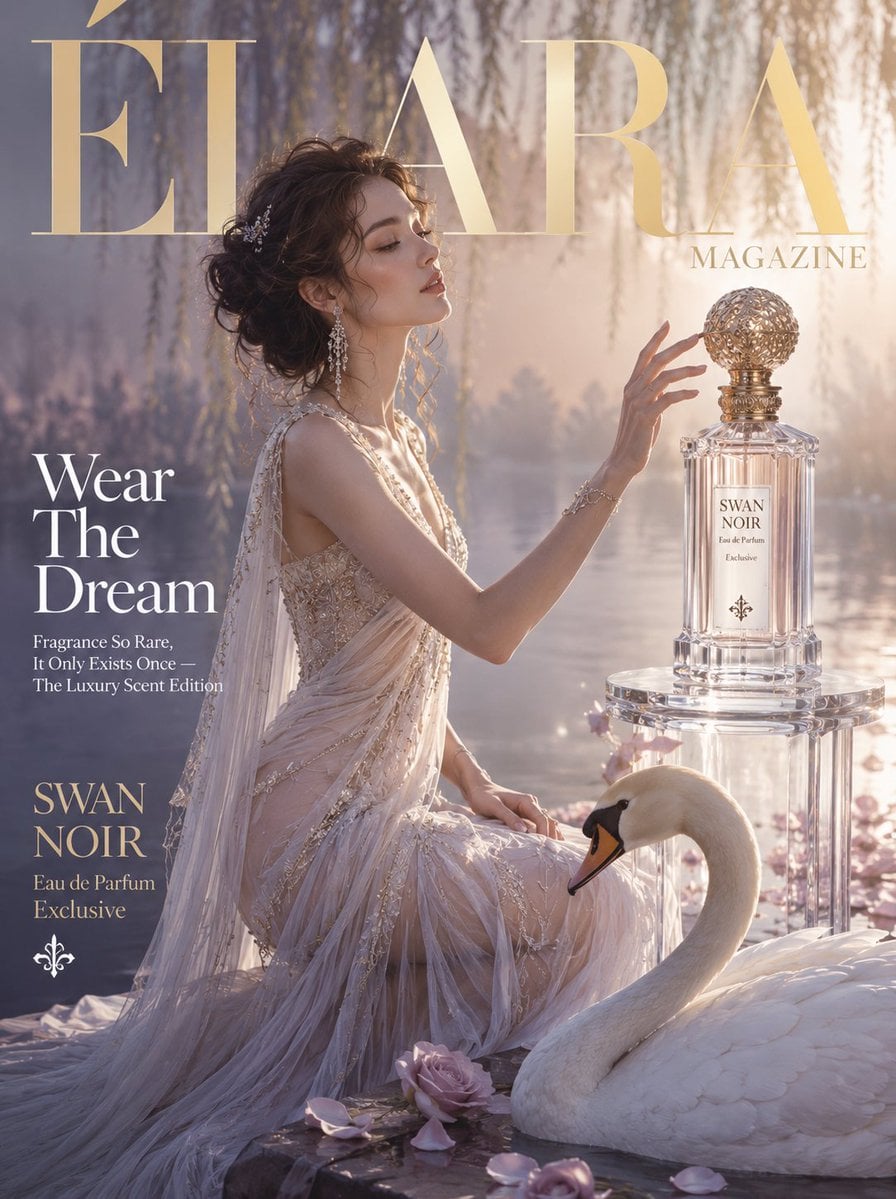
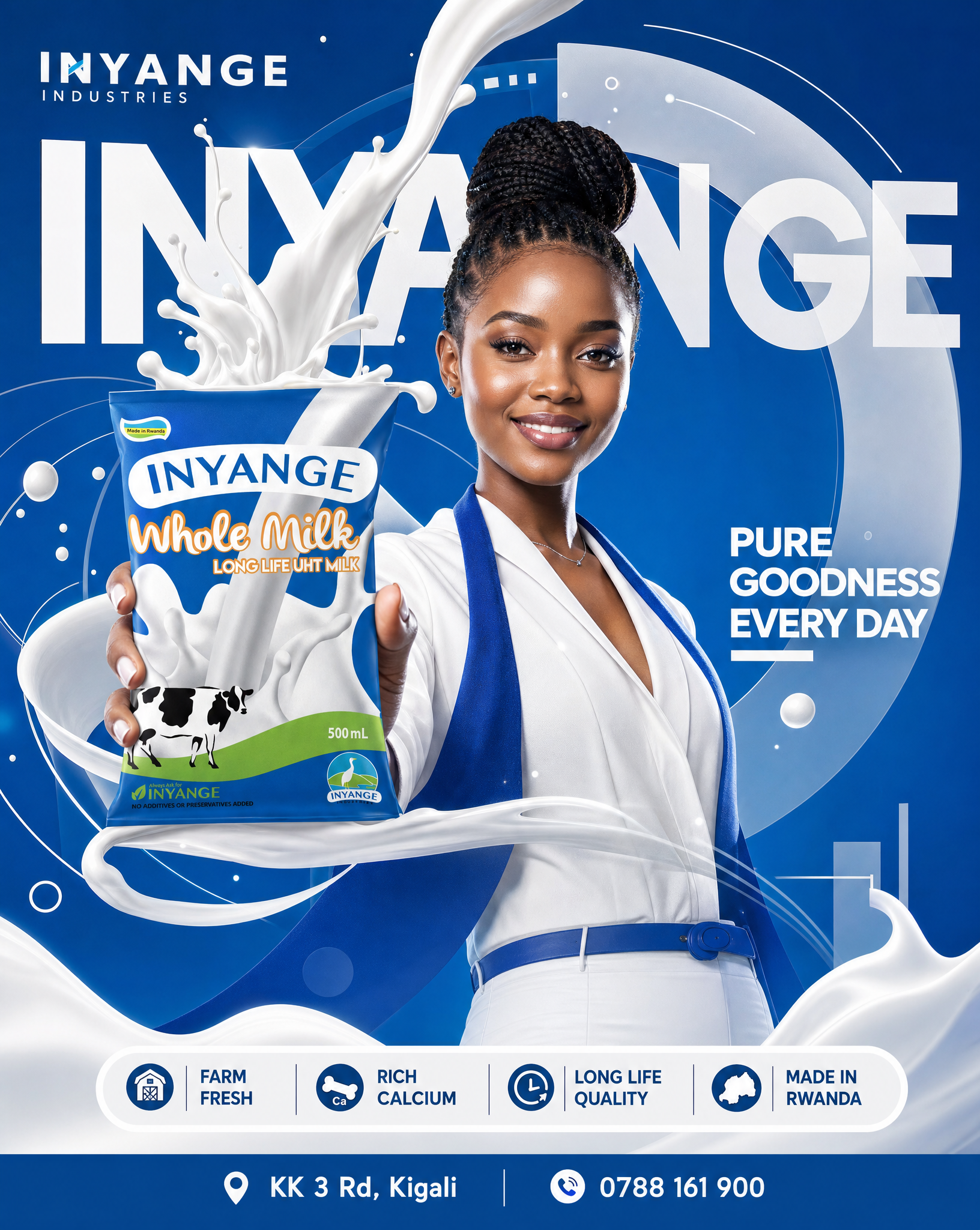
Review examples to help decide whether the model fits your task.
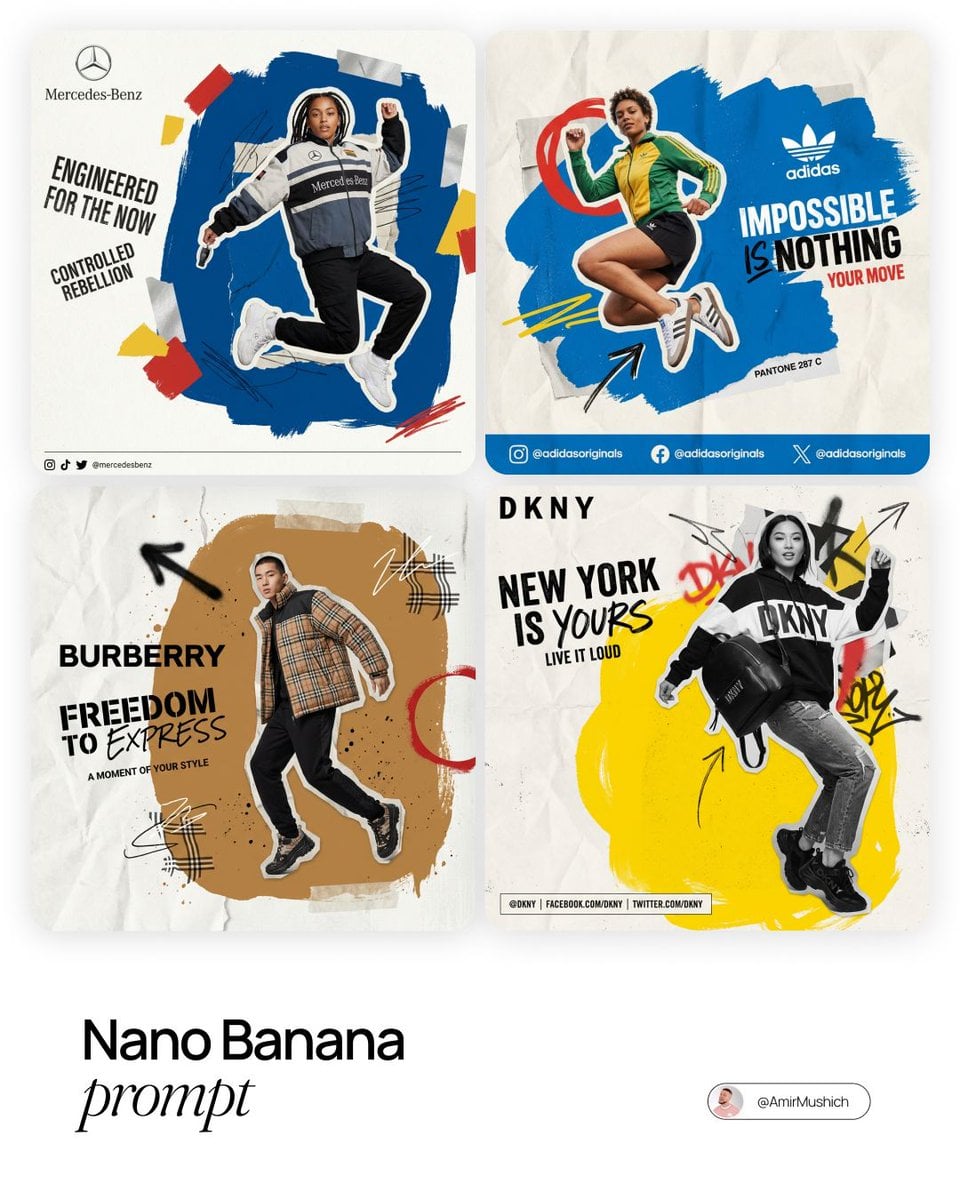
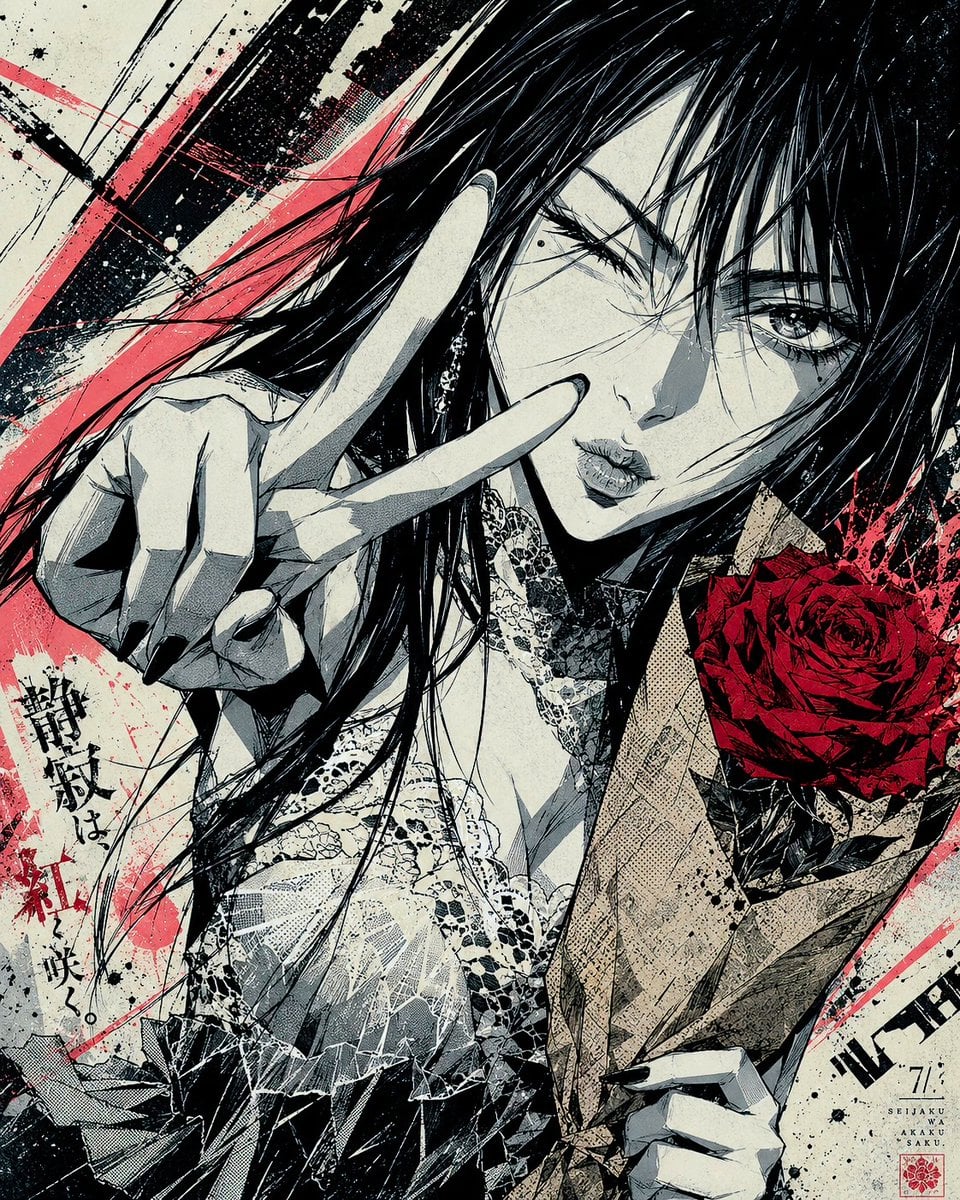
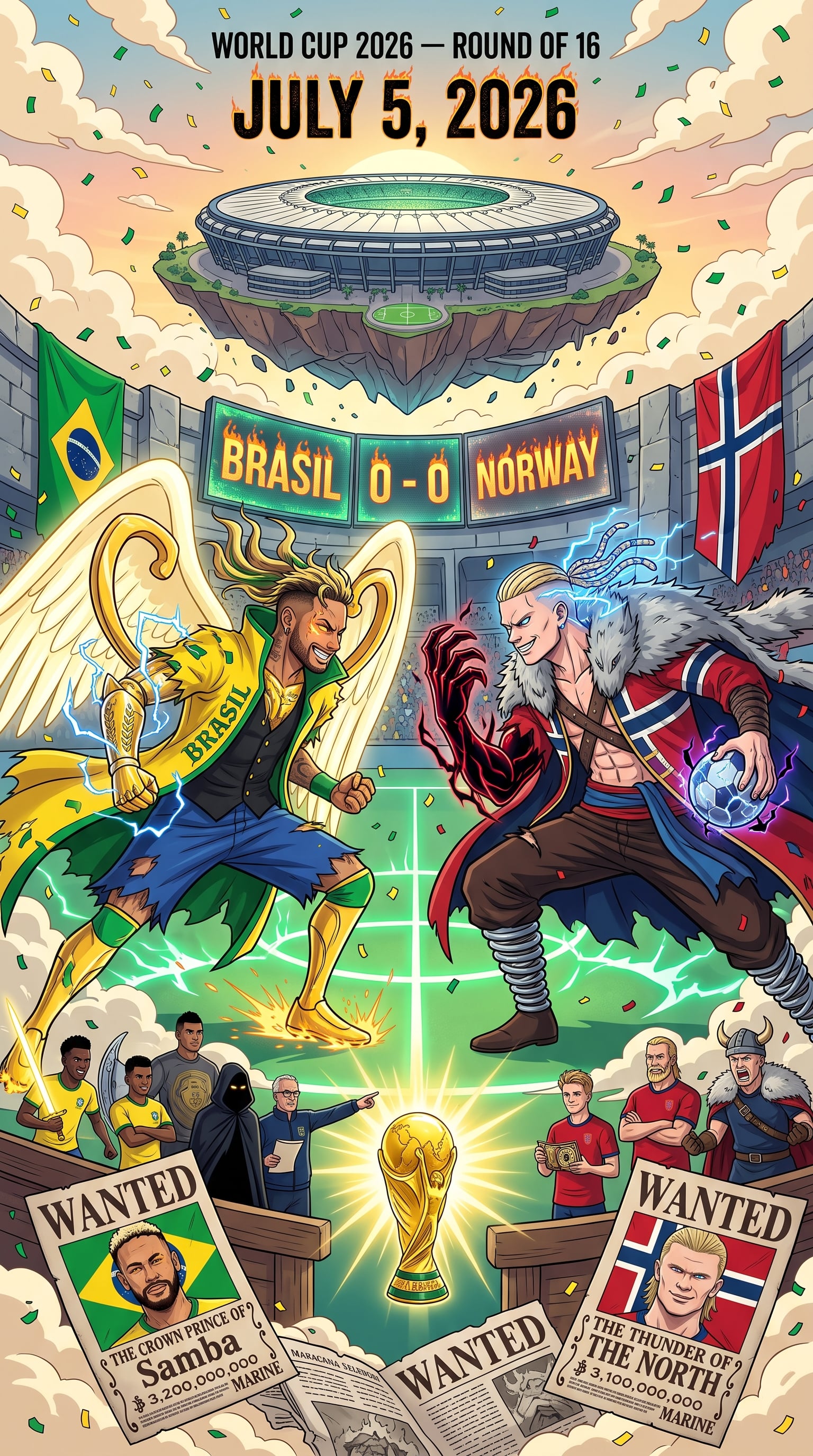
Model strengths
Model strengths
Suggested uses
Tasks to consider
Model details
Provider
Category
Image
Capabilities
Text to Image
Credit charges
Estimated 12 credits per request; final settlement depends on reported usage
Inputs
Prompt only
Prompt requirements
Up to 5,000 characters
Google Imagen4 Ultra FAQ
Consider Google Imagen 4 Ultra when you have a clear brief for homepage hero art, a launch visual, a campaign still or a brand concept for stakeholder review. Specify the subject, composition and intended placement before generating. Review the result for detail, layout and suitability; choosing Ultra does not guarantee a finished asset or fewer revisions.
Google Imagen 4 Ultra supports text-to-image requests with a main prompt, optional negative prompt, aspect ratio and optional seed text. The main prompt accepts up to 5,000 characters. This workflow does not accept reference images or expose an image-count control. A successful task must still be reviewed for content and final credit status.
Describe the subject, composition, style and lighting in the main prompt. Use the negative prompt to describe unwanted elements, and choose the aspect ratio for the intended placement. You can leave seed text empty; if you reuse it for comparisons, keep the prompt and settings unchanged. Negative prompts do not ensure every unwanted element is removed, and a seed does not guarantee identical results.
The current estimated reservation is 12 credits per request. Pricing is based on output images, and final settlement depends on valid reported usage. Rivya returns any difference when the reported charge can be settled within the reservation; otherwise the reserved amount remains charged pending reconciliation. Check the task and credit record before another run, and budget for revisions.
Compare Imagen 4 Fast, standard Imagen 4 and Imagen 4 Ultra using their current availability, controls and credit estimates. Keep the brief focused on the same subject and placement so you can assess the results against the same requirements. Choose the option whose output and cost suit the project; the tier name alone does not establish better quality or a usable final image.
Start with a settled brief for a homepage visual, launch still or campaign concept. Describe the subject and composition, select the frame shape, and inspect the credit estimate before you generate. Use the result to judge how well the direction fits the placement and what still needs revision; it is a candidate for review, not an automatically finished asset.
You can prepare a text-to-image request with a main prompt, optional negative prompt, aspect ratio and optional seed text. The default frame is square, and you can choose another offered ratio or Auto. This Ultra workflow has no reference-image input or image-count control; check the returned result rather than assuming a particular output count.
Check the subject, composition and lighting in your prompt, then list unwanted elements in the optional negative prompt. Choose a frame shape for the intended placement. Leave seed text empty if you do not need to compare settings, or reuse it with unchanged inputs while checking each result. Review the estimate and the generated content before spending on another request.
You can explore this public page and prepare the prompt and frame shape before signing in. Sending a generation requires sign-in. The current estimated reservation is 12 credits per request; final settlement uses reported usage. After sign-in, you can submit from this page or use Studio.
Use this page to prepare and submit a focused Ultra request after sign-in. Open Studio when you want the workspace layout for continued revisions, then use History to revisit saved task records and available results. Keep the brief and selected settings for comparisons, and save useful files locally. Switching surfaces does not automatically create a versioned project or preserve every unsent draft.
Compare alternatives
GPT Image 2.5 Flare supports image creation from a prompt and edits with image references, plus aspect ratio, resolution, and background settings.
Why consider it
Input option: Prompt + optional images
GPT Image 2.5 Sunburst generates images from a prompt, with optional reference images and separate aspect ratio, resolution, and background settings.
Why consider it
Input option: Prompt + optional images
GPT Image 2 on Rivya supports text-to-image generation and reference-image edits, with aspect ratio and resolution controls.
Why consider it
Input option: Prompt + optional images
Developer access
Use Google Imagen4 Ultra through Public API v1. Check the model reference for supported inputs, parameters, and credit charges before sending a request.