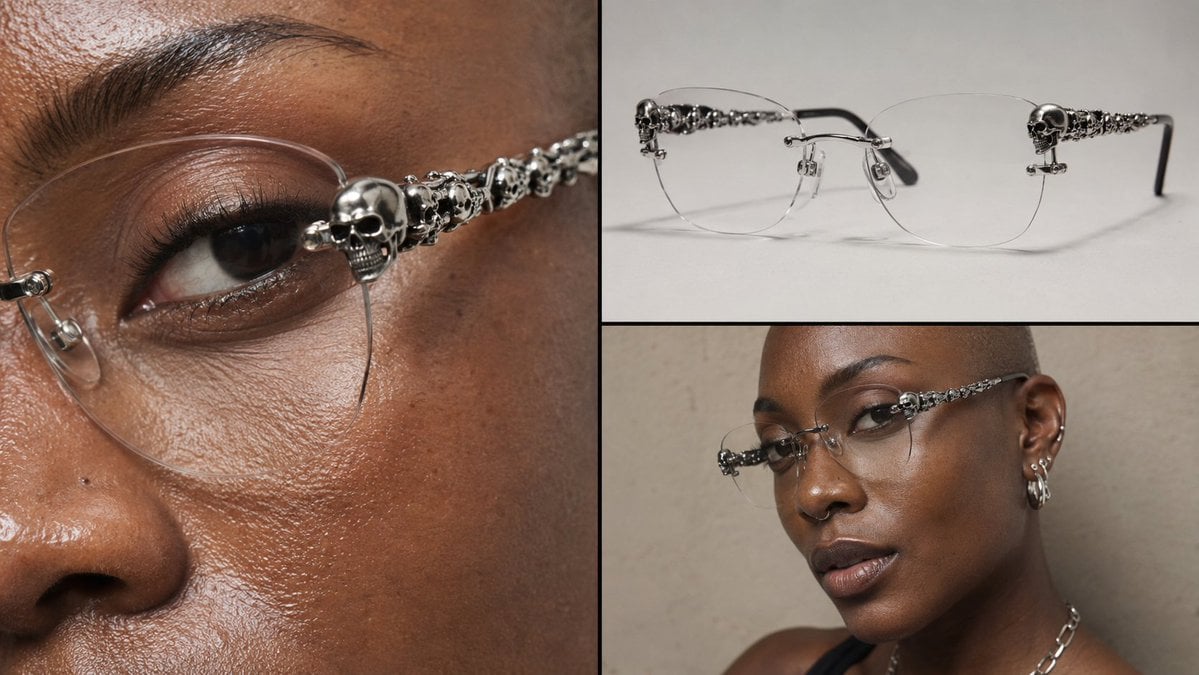
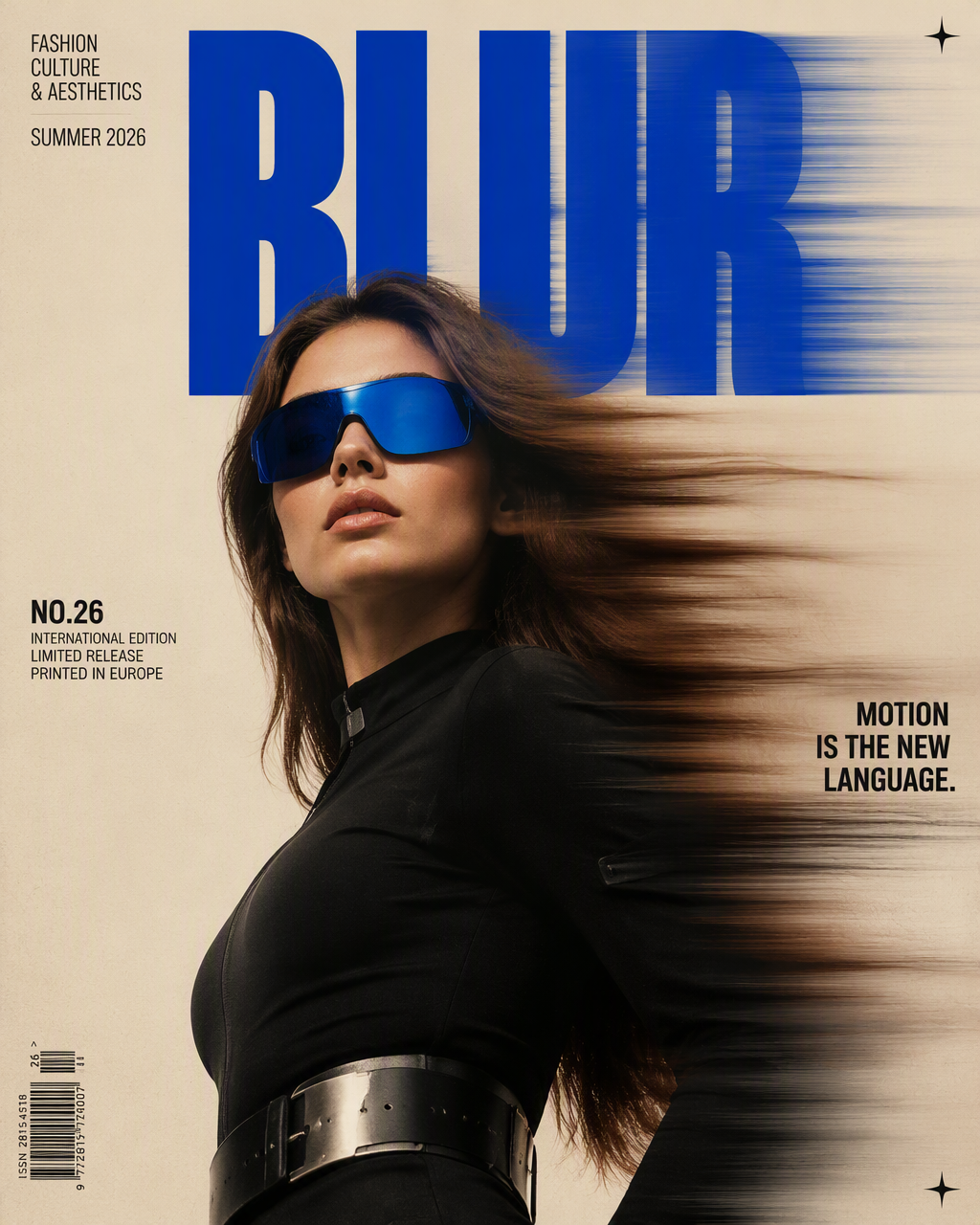
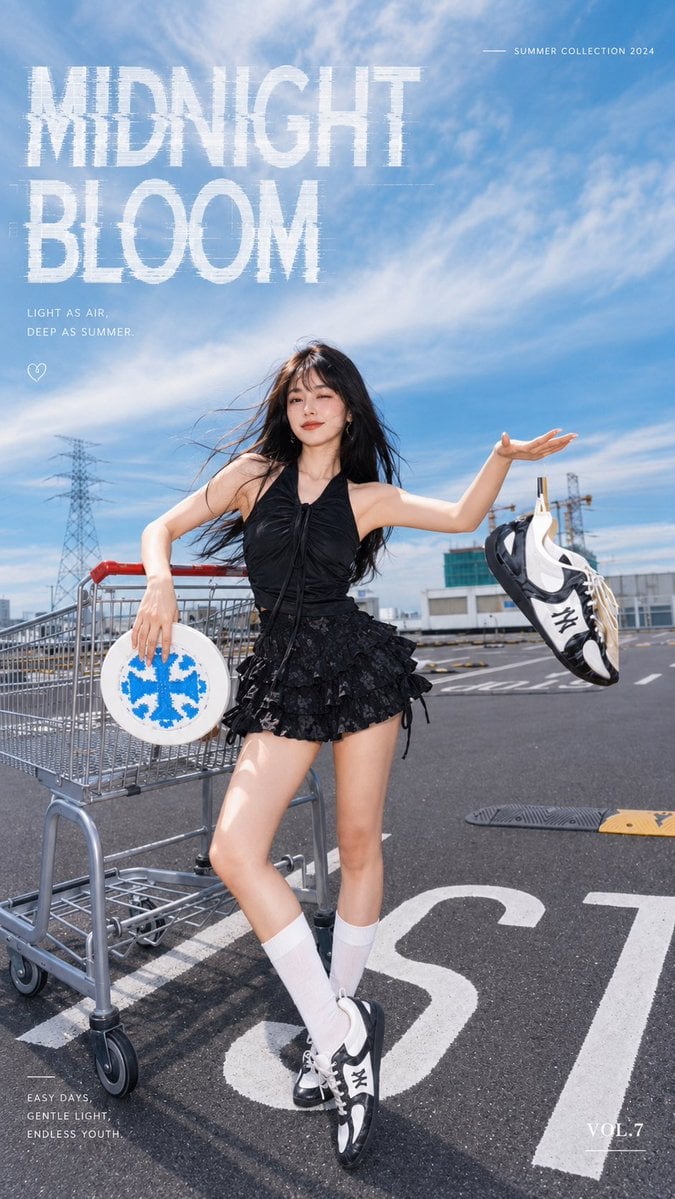
Generate a campaign concept from a prompt, or upload a product or fashion image and describe the changes you want.
The final cost is rounded up to whole credits.
Example output
Flux Kontext Max
Text to Image · Image to Image
Example output
Flux Kontext Max
Best for
Supports
Try this model
No results to display yet.
Model examples
Review examples to help decide whether the model fits your task.
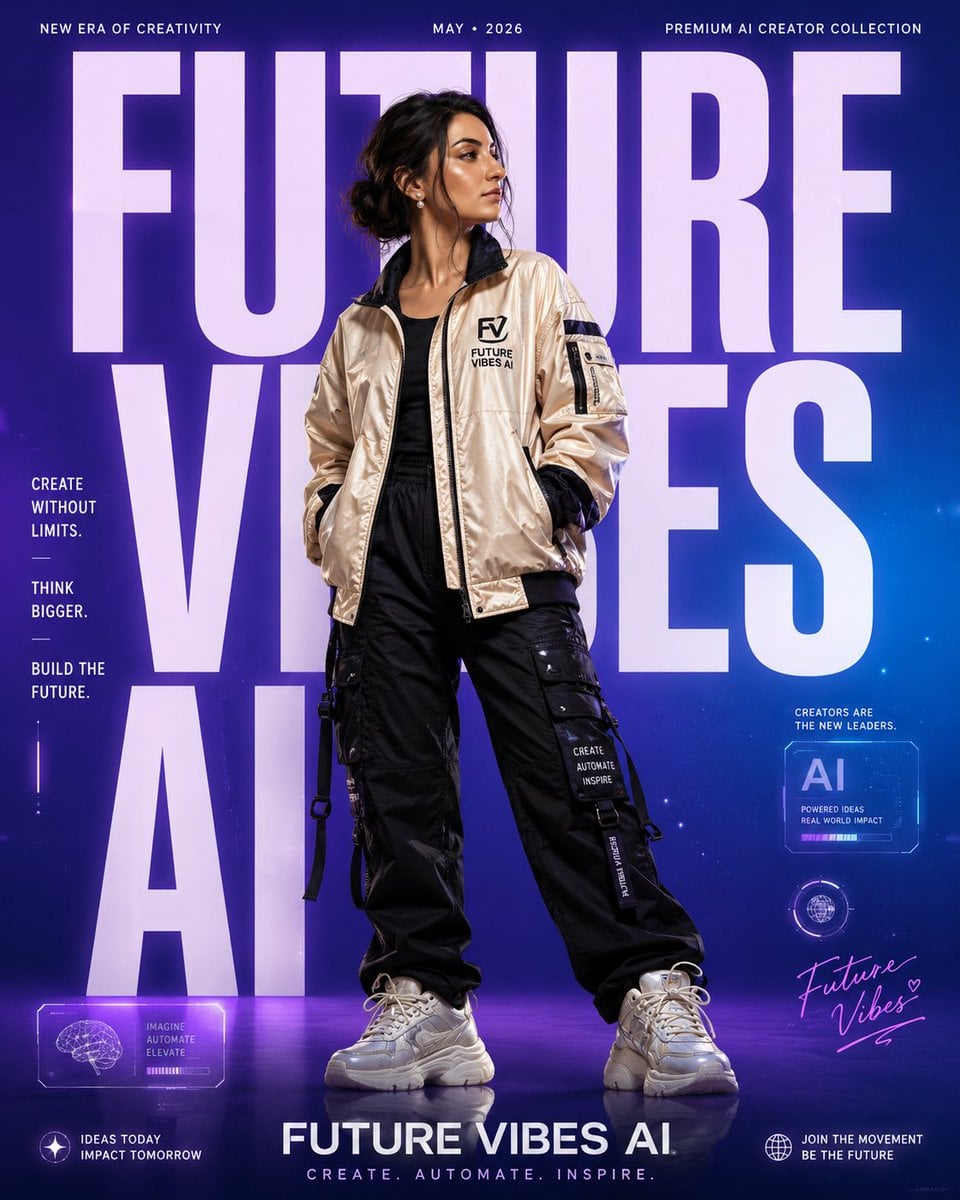
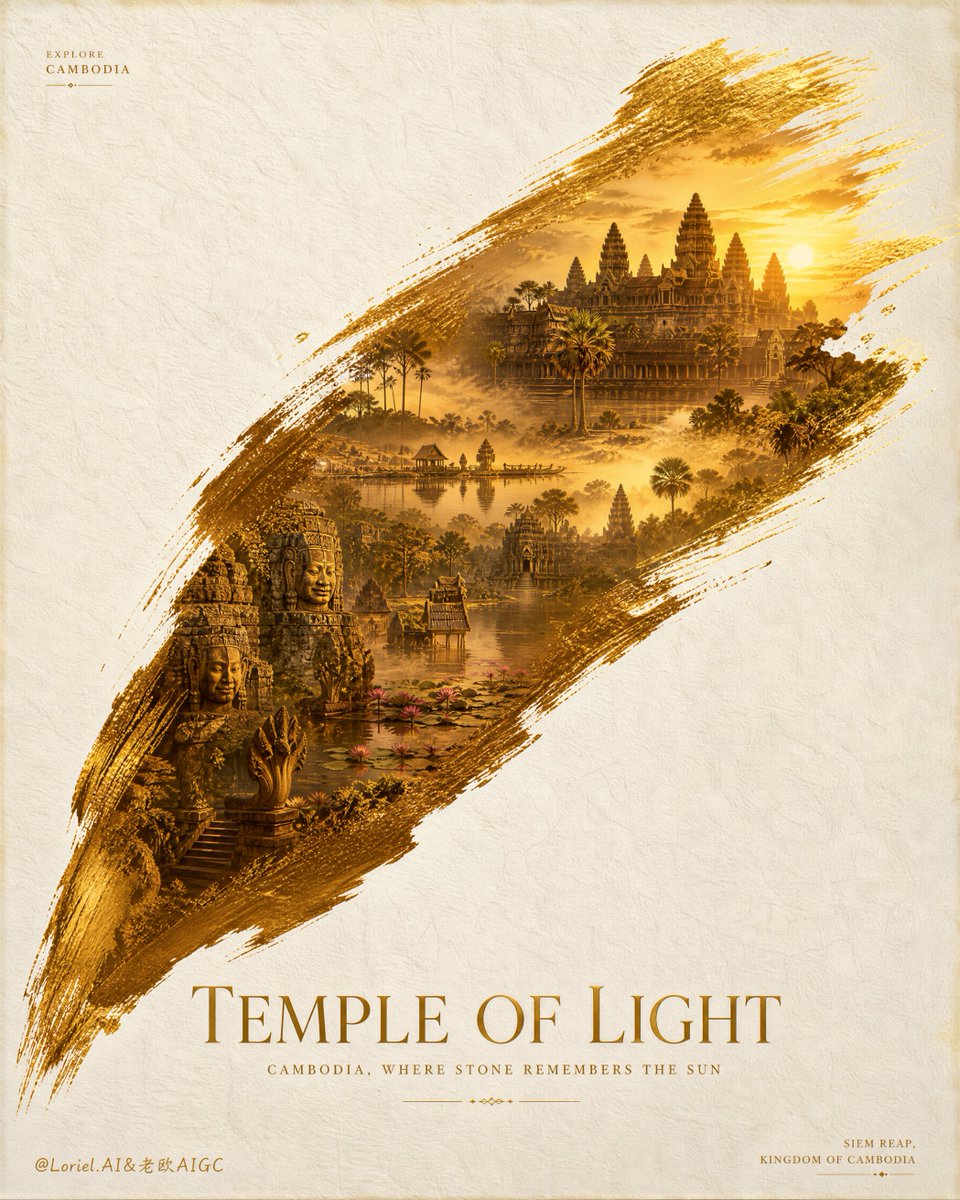
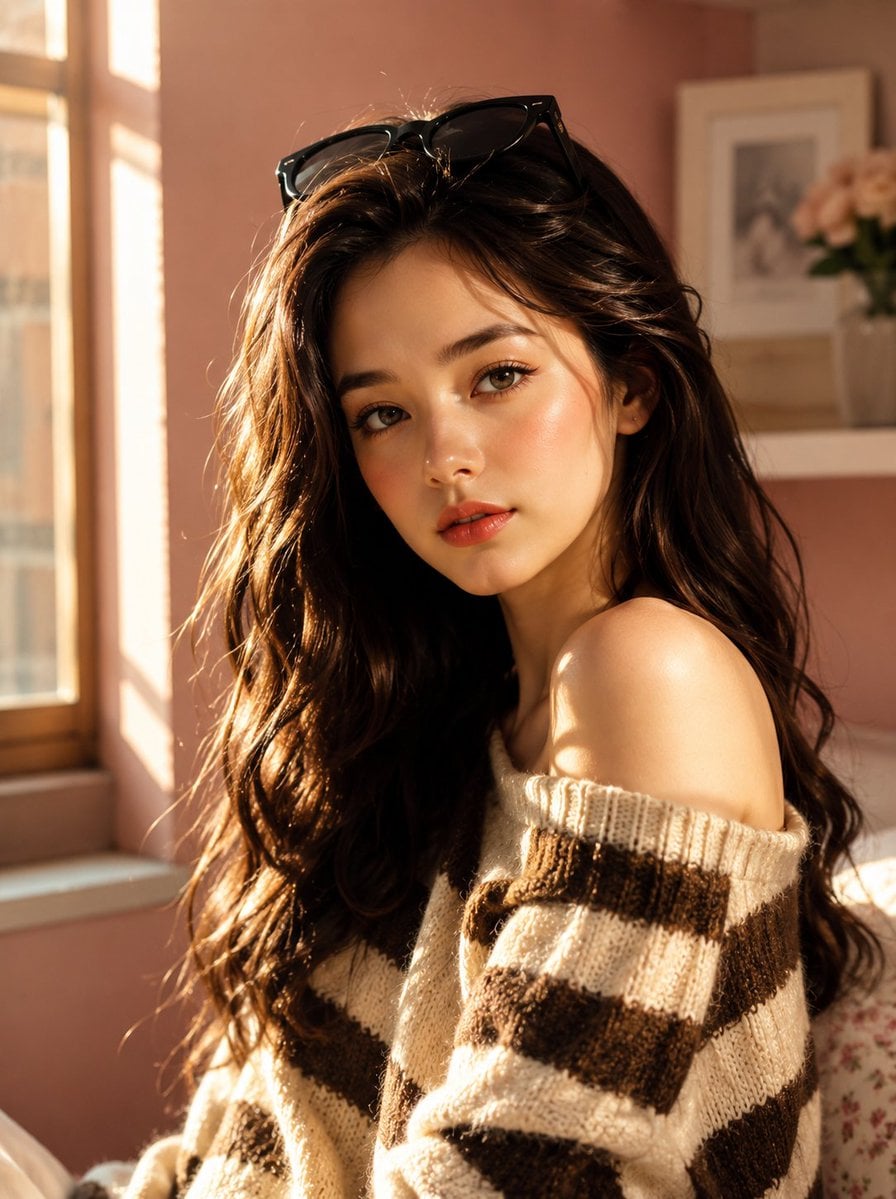
Model strengths
Model strengths
Suggested uses
Tasks to consider
Model details
Provider
Black Forest Labs
Category
Image
Capabilities
Text to Image · Image to Image
Credit charges
Credit rate: 8 per image
Inputs
Prompt + optional images
Prompt requirements
English prompt or optional automatic translation
Developer access
Flux Kontext Max can be called through Public API v1. Modes that use reference media require uploads through the Files API. Check the model reference for supported inputs.
Flux Kontext Max FAQ
Try a campaign background change, a product or fashion edit, or a brand concept from a scene description. Describe the change and what should stay the same, then review the result before using it.
Yes. Use a prompt on its own to generate an image, or add a source image to edit it. Both modes require a prompt.
The aspect ratio control applies to text-to-image generation. When you add a reference image, Rivya hides that control and sends the image without an aspect ratio setting. You can still choose JPEG or PNG output.
Rivya reserves 8 credits for each generation or edit request. Once valid provider usage is available within that amount, Rivya rounds the usage up to whole credits and returns the unused credits. Missing, invalid, or higher usage leaves billing unsettled.
Max uses a higher reservation than Kontext Pro on Rivya. Compare both with the same prompt and source image, then check the requested changes, details you wanted to keep, and the displayed credit estimates.
Choose an image with a clear subject and ask for one specific change, such as a different background or clothing color. State which details should remain, and inspect the output for unintended changes.
Upload up to 1 image in JPEG, PNG, or WebP format, no larger than 10 MiB. Use an image you have permission to edit. Rivya requires sign-in before uploading.
Check the prompt, output format, translation, upsampling, and optional watermark setting. The aspect ratio control is available for text-to-image generation. For an edit, make sure the source image matches your instruction.
You can read this page and draft a prompt without signing in. Sign in to upload a reference image or submit a generation or edit request, and make sure your account has enough credits for the displayed reservation.
Yes. Submitted generation and editing tasks appear in your account history. Use the history link to review them, or open Studio to switch models and prepare another request.
Compare alternatives
GPT Image 2.5 Flare supports image creation from a prompt and edits with image references, plus aspect ratio, resolution, and background settings.
Why consider it
Credit charges: Initial generation reserve: 1K 3 credits · 2K 10 credits · 4K 16 credits.
GPT Image 2.5 Sunburst generates images from a prompt, with optional reference images and separate aspect ratio, resolution, and background settings.
Why consider it
Credit charges: Rivya reserves 3 credits for 1K, 10 for 2K, or 16 for 4K before submitting the request.
GPT Image 2 on Rivya supports text-to-image generation and reference-image edits, with aspect ratio and resolution controls.
Why consider it
Credit charges: Initial reserve: 1K 3 credits · 2K 5 credits · 4K 8 credits.